
You paste yesterday's draft next to today's, press compare, and the whole screen turns red and green. Every paragraph is flagged. You know you only fixed two typos and moved one sentence, so either the tool is broken or something invisible is going on.
Almost always it is the second one. A comparison tool does not read text the way you do. It sees a sequence of characters and lines, and it reports every place where that sequence differs, including differences your eyes cannot see. This guide explains what those hidden differences are, how the matching logic works, and how to set up a comparison so the output reflects the edits you actually made.
A Diff Compares Characters, Not Meaning
When you read two versions of a paragraph, your brain quietly smooths over anything that does not change the sense. A tab versus four spaces, a curly quote versus a straight one, a trailing space at the end of a line: none of it registers. A diff has no such filter by default, so each of those counts as a real change.
The idea behind this kind of comparison is old and well documented. The Wikipedia article on diff traces how the utility was built to show the smallest set of edits that turns one file into another. The word "smallest" matters, because it explains a lot of the surprises you see later.
That means the first question to ask when a result looks wrong is not "what did I change?" but "what does the tool consider a character?" The answer decides whether your comparison is useful or just noisy.
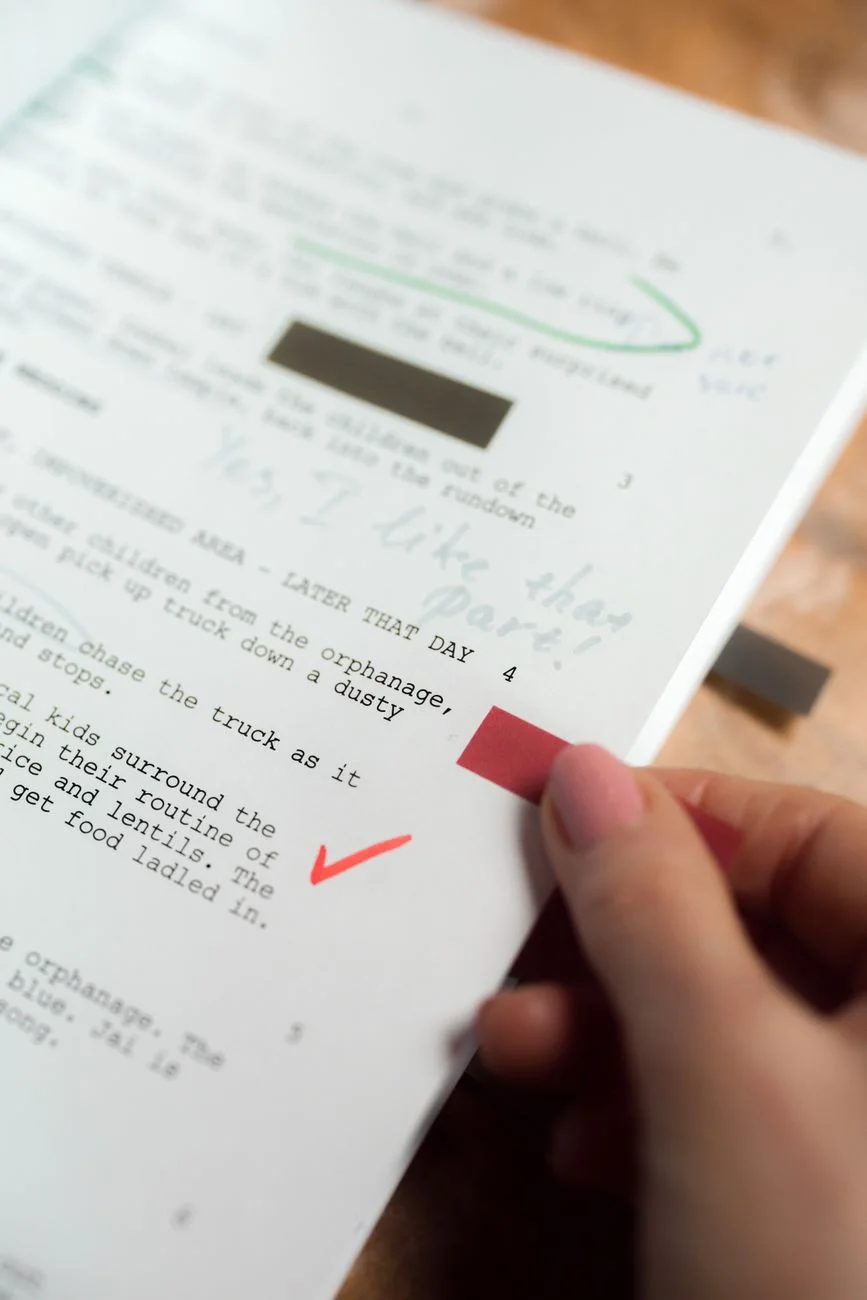
 Photo by cottonbro studio on Pexels
The Invisible Culprit: Line Endings
The most common cause of a whole-file difference is line endings. Different systems end a line in different ways. Older Windows software uses a carriage return followed by a line feed, Unix-style systems use only a line feed, and some very old systems used only a carriage return. The Wikipedia page on newline lays out the history and the exact byte sequences.
If you copy text from a document that was saved on one system and compare it with text that passed through another, every single line can end differently. To a person the two versions look the same. To a line-by-line comparison, every line is a mismatch, so every line lights up.
This happens more often than you would expect. Text pasted from a web form, an email client, a word processor, and a code editor can each add or strip these characters without telling you. If a diff flags literally every line, line endings are the first thing to rule out.
Whitespace: Trailing Spaces, Tabs, and Blank Lines
Whitespace is the next most common source of phantom changes. A line that ends with a stray space is a different line from the same words with no trailing space, and a diff will say so. The same goes for a tab replaced by spaces, a doubled space after a period, or an extra blank line between paragraphs.
Word processors make this worse by inserting characters you never typed. A non-breaking space looks exactly like a regular space on screen but is a different character underneath. Copy a sentence out of a formatted document and you can carry a few of these along without noticing.
Most comparison tools offer an option to ignore whitespace, or at least to ignore changes in the amount of whitespace. Turning that on is often the quickest way to cut a noisy result down to the edits you care about. Just remember what you switched off: if whitespace carries meaning in your text, such as indentation in code or a table made of spaces, ignoring it can hide a real difference.
Quotes, Dashes, and Look-Alike Characters
Typography adds another layer. A straight apostrophe and a curly one are two different characters. So are a hyphen, an en dash, and an em dash. Editors with "smart" punctuation settings convert these automatically as you type, which means an edit session can change hundreds of characters while you only meant to fix a sentence.
Some characters are even harder to spot because they are look-alikes from other scripts. The Unicode Consortium maintains the standard that defines all of them, and it is a useful reference if you ever need to track down why two apparently identical words do not match.
Accented letters can also be stored in two ways: as one combined character or as a base letter followed by a separate accent mark. They render identically, but a plain comparison treats them as different. If a single word keeps getting flagged and you cannot see why, this is a likely reason.
How the Matching Actually Works
Under the hood, most diff tools look for the longest run of content the two versions share, then treat everything outside that run as added or removed. This is a version of a classic computer science problem, and the Wikipedia article on the longest common subsequence explains the underlying idea in approachable terms.
You do not need the math to benefit from the principle. The tool is trying to find the largest amount of text that stayed the same, and it reports the rest as the edit. Usually that matches what a person would call the change. Sometimes it does not.
Consider a paragraph you moved from the top of a page to the bottom. A human sees one move. A diff sees one deletion in one place and one insertion in another, because it has no notion of "moved." Both appear as changes, and unless you read them together, they can look like unrelated edits.
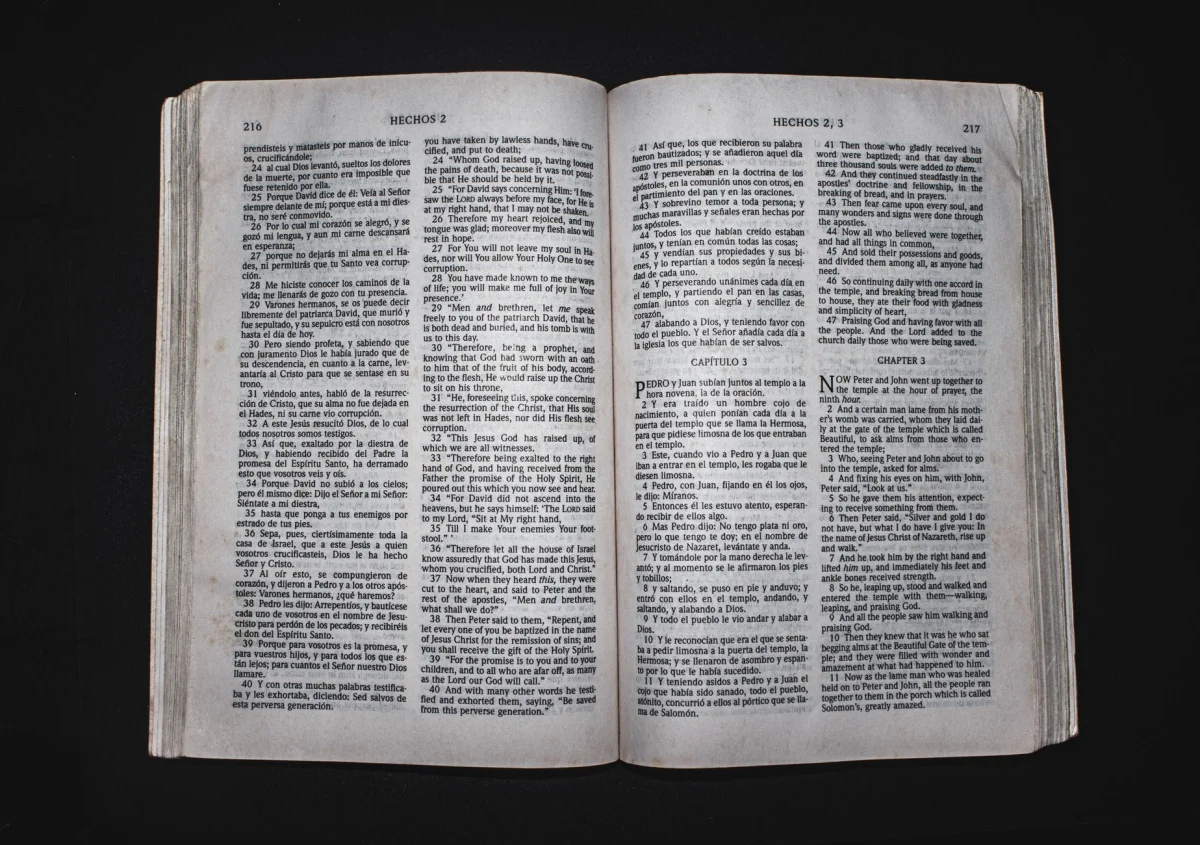
 Photo by Zen Chung on Pexels
Why the Same Edit Can Look Different
Here is a subtle point that trips people up. For some pairs of documents there is more than one equally good way to describe the changes. The tool picks one, and a different tool might pick another. Neither is wrong, but they can read differently.
Say you replaced a repeated phrase in a list. One tool might show the first occurrence as deleted and the second as added, while another shows them the other way around. The end result is identical, which is the point: a diff describes a path from version A to version B, not the one true history of your edits.
This is also why the level you compare at matters. A line-based comparison flags the whole line if a single word changes. A word-based comparison highlights only the words that differ. A character-based one goes further still. Choosing the right level is often the difference between a result you can read in seconds and one you have to squint at.
Lines, Words, or Characters: Picking the Right Level
Line-level comparison is the traditional default, and it works well when each line is a self-contained unit, such as a list of settings or a block of structured data. It is fast and the output is compact.
Prose behaves differently. A paragraph is usually one long line, so changing one word makes the entire paragraph show as replaced. For writing, a word-level view is far more useful because it shows exactly which words moved, appeared, or vanished, and leaves the untouched ones alone.
Character-level comparison is best for catching tiny differences, like a changed digit in a number or a single swapped letter in a name. It can be noisy on long passages, so many people use it only after a coarser pass has narrowed down where to look.
Real Situations Where This Bites
The same few causes show up again and again. A writer compares a contract draft with the version a lawyer returned, and the lawyer's software has converted every quote mark, so hundreds of "changes" appear. An editor compares a manuscript before and after a style pass, and trailing spaces trigger a wall of red. A developer compares a configuration file across two machines, and the only real difference is a single value buried under line ending noise.
In each case the person is not wrong to be confused. The tool did exactly what it was told. The fix is almost never to read harder; it is to normalize the inputs so both sides are speaking the same language before you compare.
"Most of the time a noisy comparison is a data-cleaning problem, not a reading problem. Normalize line endings and whitespace first, and the real changes show up on their own." - Dennis Traina, founder of 137Foundry
 Photo by Ron Lach on Pexels
A Clean Way to Run a Comparison
A short routine removes most of the noise before it starts. Work through these steps in order and you will rarely see a phantom change.
- Paste both versions in as plain text, not formatted text, so hidden styling does not come along.
- Check whether either version came from a different system, and if so, normalize the line endings.
- Decide whether whitespace matters for this text. For prose it usually does not, so choose to ignore it.
- Pick the comparison level that matches your content: lines for structured data, words for writing.
- Scan the result for moved blocks and read each deletion together with the matching insertion.
- If one spot still looks odd, zoom in with a character-level pass on just that passage.
Following this order keeps you from chasing differences that do not exist. It also leaves you with a short list of genuine edits, which is what a comparison is supposed to give you.
Using a Free Tool for the Quick Cases
For everyday jobs like checking two drafts of an email, a policy, or an article, you do not need a version control system. The free Text Diff Tool on EvvyTools lets you paste two versions and see what was added, removed, or left alone, with the differences highlighted so you can scan them quickly.
Used with the routine above, it handles most review work in a minute or two. If a result looks strange, run through the hidden causes in this article before doubting your own memory of what you changed.
For heavier work, such as tracking a long-lived project with many contributors, a dedicated system is the right choice. Git is the standard example, and it applies the same underlying ideas at a much larger scale, including options for ignoring whitespace when comparing.
What to Remember
A comparison tool is honest but literal. It reports every difference in the underlying characters, whether or not those differences matter to a human reader. When a result looks wrong, the cause is nearly always line endings, whitespace, or substituted characters rather than a mistake on your part.
Normalize first, pick a comparison level that fits the text, and read moved blocks as pairs. Do that and the output becomes a trustworthy list of what really changed.
If you want more practical explanations like this one, browse the EvvyTools blog, explore the full tools directory, or start from the EvvyTools homepage.