

The promise of Markdown is that you write the file once and it renders the same everywhere. The reality is that the same file pasted into GitHub, Notion, and a blog CMS can produce three visibly different documents. Headings shift levels, tables stop being tables, footnotes vanish, and what looked like a clean table of contents becomes a wall of asterisks.
This is not because Markdown is broken. It is because there is no single Markdown. The original 2004 spec was small and ambiguous, and every platform since has filled in the gaps differently. The good news is that the differences cluster into a short list of features, and once you know which ones drift, you can write files that survive any pipeline.
This piece walks through where Markdown actually fragments, what to do about each split, and a small set of habits that keep a draft portable from the first keystroke.
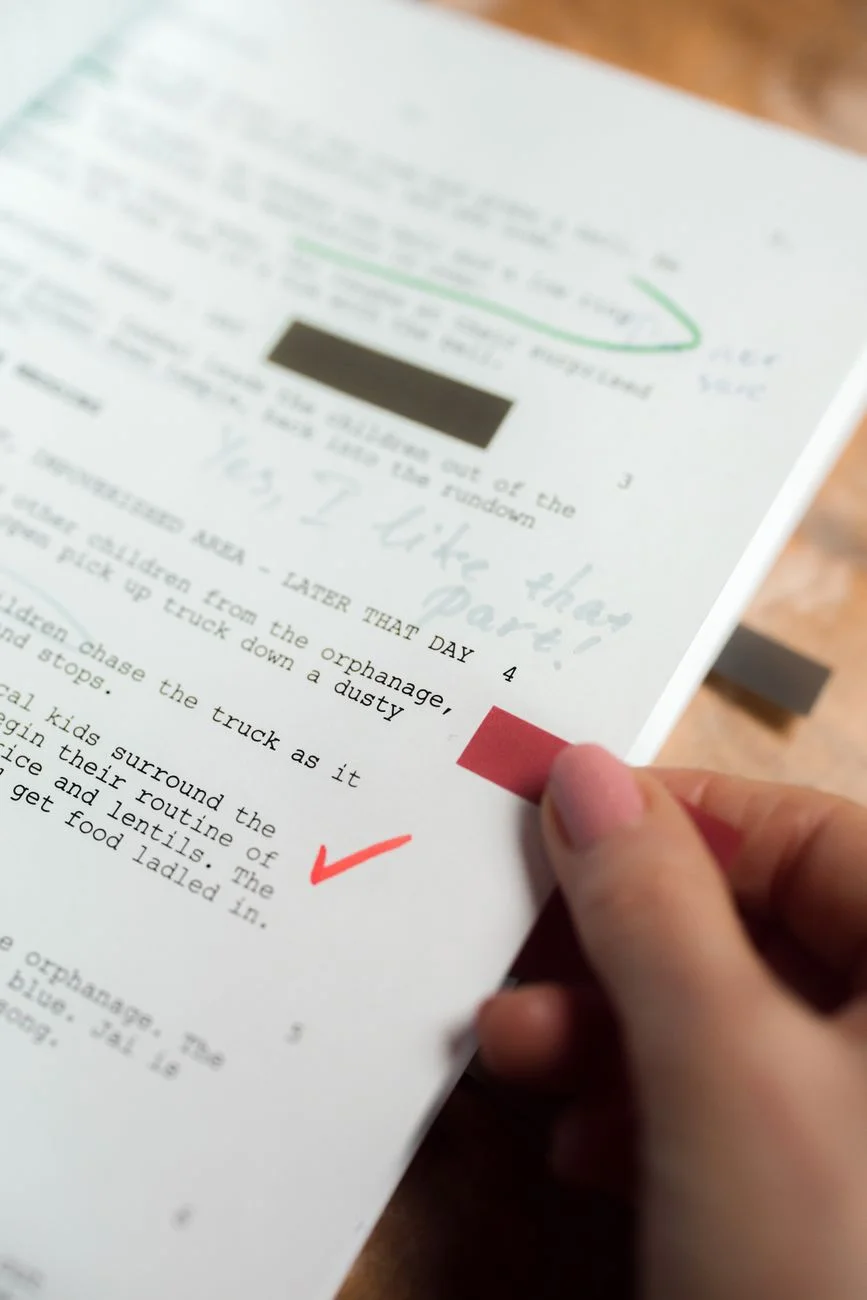
 Photo by Said on Pexels
Why "just Markdown" is not actually a thing
When someone says a tool "supports Markdown," they almost always mean one of four flavors. There is the original Daring Fireball Markdown, which is what most people picture but almost nothing actually implements anymore. There is GitHub Flavored Markdown (GFM), which adds tables, task lists, strikethrough, and fenced code blocks. There is CommonMark, a careful standardization of the original spec that resolves dozens of ambiguities. And there is whatever a given CMS or note tool has invented on top.
Notion is its own animal. It accepts Markdown on paste, converts it to native blocks, and then forgets it was ever Markdown. Some constructs round-trip cleanly. Many do not. Exporting back out gives you a different file from the one you imported, and that round trip is where most cross-tool pain lives.
A blog CMS is usually whichever Markdown library the platform shipped years ago. Ghost runs on a CommonMark variant. Hashnode is close to GFM. Static-site generators like Hugo and Jekyll ship with parsers you can swap out, which means two Jekyll sites can render the same file differently. None of this is documented anywhere a writer would naturally find it.
The point is not to memorize which platform uses which parser. The point is to write inside the intersection of all of them and stop relying on the features that diverge.
The features that drift, and what to do about each
There is a short list of Markdown features where parsers disagree. If you avoid the ones that disagree and lean on the ones that do not, you have already solved most of the problem.
Headings. Use ATX headings only, the kind with hash marks at the start of the line. The Setext form, where you underline a line with equals signs or hyphens, is technically valid but several parsers refuse to recognize H2 underlines if the line above is shorter than the underline. ATX is fine everywhere.
Lists. Use a single style consistently. Pick either hyphens or asterisks for unordered lists and stick with it for the entire document. Mixing them is legal but some parsers reset list numbering at every style change, which produces weirdly broken ordered lists when nested. For ordered lists, you can technically write 1. for every item and the parser will renumber, but several tools render them literally. Type the real numbers.
Emphasis. Use underscores for italic and asterisks for bold, or pick one style and stick with it. The trouble shows up in mid-word emphasis. Some parsers happily render un_friend_ly with "friend" in italics. Others, especially CommonMark, deliberately do not. The fix is to avoid mid-word emphasis entirely. If you need it, use HTML <em> tags, which every Markdown parser passes through unchanged.
Tables. Tables are not in the original Markdown spec at all. GFM added them. CommonMark does not include them. Notion converts them to a database block. Most modern CMSes support them, but the column-alignment colons (:---:) are inconsistently respected. Write tables when you need a table, but keep them simple and do not rely on alignment hints rendering anywhere.
 Photo by Chris Liu on Pexels
The line-break trap that catches almost everyone
The single most common Markdown surprise is the line break. In the original spec, a single newline inside a paragraph is ignored. Two newlines start a new paragraph. To force a line break without starting a paragraph, you put two trailing spaces at the end of a line.
That is the rule almost no editor enforces. You cannot see trailing spaces in most editors. You almost never want them in any other context. So in practice, writers either get unwanted joined lines or no soft breaks at all.
Two coping strategies work. The first is to never need a soft break. Restructure into separate paragraphs, or accept that the line will wrap naturally. The second is to use a backslash at the end of the line, which CommonMark and most modern parsers accept as a hard break. It is visible, it is grep-able, and it does not depend on whitespace your editor strips.
Notion does its own thing here. Shift-Enter inside a Notion block produces a soft break in the rendered block, but exporting back to Markdown converts that to a paragraph break. The cleanest answer is to write in your own editor first, with breaks the way you want them, and treat Notion as the destination rather than the origin.
This is one of those small habits that pays off long after you set it. The kind of compounding fix that good tooling encourages from day one - which is exactly the angle behind a thoughtful writing surface.
"The biggest portability wins for Markdown come from writing inside a strict subset and keeping the editor consistent. Once your draft renders the same in two preview targets, it will usually render the same in the third." - Dennis Traina, founder of 137Foundry
Code blocks and the language hint that disappears
Fenced code blocks with triple backticks are the most consistently supported non-original feature in Markdown. Every modern parser handles them. What does not always survive is the language hint after the opening fence.
The convention is ```python to label a Python block so the renderer can highlight it. GFM and CommonMark respect it. Notion accepts a wide range of language names. Some older CMSes silently drop the hint and render the block plain. Some require a specific name (js versus javascript, for example).
Two habits help. First, use the common, unambiguous names: python, javascript, bash, html, css, json, sql, yaml. These are accepted everywhere. Second, do not put critical visual information inside syntax highlighting. If a reader has to see the highlighting to understand the example, the example is not strong enough on its own.
Indented code blocks (four spaces) still work, but they are easy to break with stray paragraph indentation and they cannot carry a language hint. Fenced is better.
Links, images, and the reference style nobody uses
Markdown supports two link styles. Inline, where the URL sits next to the text in parentheses, and reference, where you put a short label in brackets and define the URL once at the bottom. Reference links are easier to maintain in long documents and they survive almost every parser, including the strictest CommonMark.
In practice, most writers use inline links because the URL is right there while they are writing. Both work. The thing to avoid is automatic URL detection. Some parsers turn bare URLs in text into clickable links. Others do not. If you want the URL to be clickable, wrap it in angle brackets (<https://example.com>) or write it as a proper inline link. Do not assume autolinking will happen.
Images are the same pattern with an exclamation mark in front. The portability issue is the alt text. Several CMSes use the alt text as a caption when none is provided. Notion uses it as a tooltip but not a caption. Static site generators usually pass it through as the HTML alt attribute and nothing more. Write alt text that works as a description for a screen reader, not as a caption for sighted readers, and accept that captions are a separate concern handled outside the file.
For working with images during drafting, having a free Markdown Editor by EvvyTools with a live preview pane means you can see exactly how your image references resolve before pasting anywhere else. It is one of the small frictions that disappears once you have a dedicated tool in the loop instead of a generic text editor.
 Photo by seymasungr on Pexels
 Photo by Towfiqu barbhuiya on Pexels
The portable subset, in one paragraph
If you stay inside this set, your files render the same nearly everywhere: ATX headings only, a single consistent bullet style, real ordered numbers, paragraph breaks instead of soft breaks, fenced code blocks with common language names, inline or reference links but no bare autolinking, simple tables without alignment colons, and alt text written as description rather than caption. That is most of the language. The features outside that set are the ones that produced this article.
You do not need to memorize this. You need to write a few drafts with these constraints active, paste them into your destinations, and notice that nothing breaks. After that the habits settle in and you stop thinking about them.
Tooling that helps the habit stick
The portable-Markdown discipline gets easier with an editor that shows you a preview while you write, because the rendering surprises happen at write time rather than three pastes later. A split-pane editor with live preview, an export to clean HTML, and a stats bar that tells you when a draft is wandering is the right starting point. The EvvyTools tools directory has one in the writing and content section that runs entirely in the browser and does not store your draft on a server.
The deeper habit, though, is treating the Markdown file as the source of truth and every destination as a derived view. If your draft lives in Notion and you export it to publish, you are at the mercy of whatever Notion decided to do with your formatting during conversion. If your draft lives in a Markdown file you control, the destinations have to take what they get. That alignment, more than any specific syntax rule, is what makes a writing workflow durable across the tools you will inevitably switch between over the next few years.
There is more to explore on the EvvyTools blog about writing workflows and the tooling that keeps them simple. For everything else there is the EvvyTools homepage, which is a good landing pad if you want to wander through the rest of the tool catalog.